Advanced: Redirecting Module Output to Stand-Alone Message#
Consider a more advanced Xmera simulation setup where you have two modules that both need to write to the same stand-alone message. The motivation here is to simultaneously run two or more flight guidance algorithm modules, but only one gets executed depending on the flight mode. Regardless of which guidance module is executed, the guidance output message must be fed to the same control module. This cannot be accomplished if the third module subscribes either to the output message of module 1 or 2. To avoid trying to re-subscribe to different module output messages when switching flight modes, we can choose to have both modules 1 and 2 write to the same stand-alone message as illustrated below.
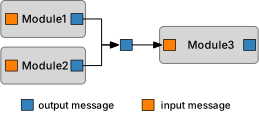
The benefit is that the 3rd module can subscribe its input message to this one stand-alone message. To be clear, this sample application assumes either module 1 or 2 is executed, but not both. Otherwise, one would overwrite the others’ message output.
The sample simulation script creates two modules which have their individual output messages redirected to a stand-alone message.
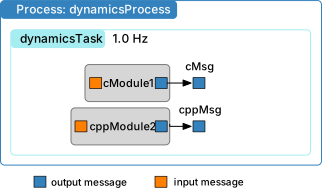
In the following sample code, two modules are created. To create a stand-alone message, assume a message
of type SomeMsg needs to be created. This is done using:
standAloneMsg = messaging.SomeMsg()
To redirect the output of a module someModule to this stand-alone message, simply set:
someModule.dataOutMsg = standAloneMsg
 1    scSim = SimulationBaseClass.SimBaseClass()
 2
 3    #  create the simulation process
 4    dynProcess = scSim.CreateNewProcess("dynamicsProcess")
 5
 6    # create the dynamics task and specify the integration update time
 7    dynProcess.addTask(scSim.CreateNewTask("dynamicsTask", macros.sec2nano(1.)))
 8
 9    # create modules
10    mod2 = cppModuleTemplate.CppModuleTemplate()
11    mod2.modelTag = "cppModule2"
12    scSim.AddModelToTask("dynamicsTask", mod2)
13
14    # create stand-along message with a C++ interface and re-direct
15    # the C++ module output message writing to this stand-alone message
16    cppMsg = messaging.ModuleTemplateMsg()
17    mod2.dataOutMsg = cppMsg
18
19    #  initialize Simulation:
20    scSim.InitializeSimulation()
21
22    #   configure a simulation stop time and execute the simulation run
23    scSim.ConfigureStopTime(macros.sec2nano(1.0))
24    scSim.ExecuteSimulation()
25
26    # read the message values and print them to the terminal
27    print("mod2.dataOutMsg:")
28    print(mod2.dataOutMsg.read().dataVector)
29    print("cppMsg:")
30    print(cppMsg.read().dataVector)
31
32    return
33
34
35if __name__ == "__main__":
36    run()
Note
In C++, we are setting standAloneMsg equal to someModule.dataOutMsg. Recording either one will
give the same result. Be sure to record standAloneMsg to ensure you capture the redirected message output.
To see the message states of both the module internal message objects and the stand-alone messages, the sample script
shows how to use .read() to read the current state of the message object. This will return a copy of the message
payload structure.
After executing the script you should see the following terminal output:
source/code-samples % python xmera-7.py
BSK_INFORMATION: Variable dummy set to 0.000000 in reset.
BSK_INFORMATION: Variable dummy set to 0.000000 in reset.
BSK_INFORMATION: Module ID 1 ran Update at 0.000000s
BSK_INFORMATION: Module ID 2 ran Update at 0.000000s
BSK_INFORMATION: Module ID 1 ran Update at 1.000000s
BSK_INFORMATION: Module ID 2 ran Update at 1.000000s
mod1.dataOutMsg:
[2.0, 0.0, 0.0]
cppMsg:
[2.0, 0.0, 0.0]
mod2.dataOutMsg:
[2.0, 0.0, 0.0]
cppMsg:
[2.0, 0.0, 0.0]