Xmera Process and Task Creation#
To execute modules within a simulation, their evaluation is managed through Xmera’s Process and Task
containers. A BSK Task contains one or more modules that are executed at the same update rate. A Process is
a group of tasks that often represent a related functional unit.
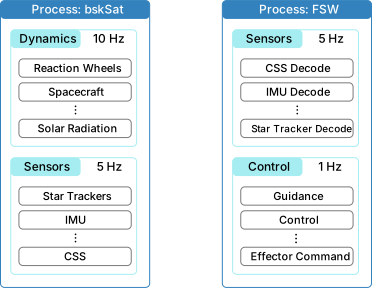
For example, in a multi-satellite simulation, you could create a Process for each satellite to keep the
associated tasks and modules organized. The diagram below shows an example layout where the dynamics of the
bskSat satellite are added to a separate process from the flight software (FSW) algorithms executed on the
satellite. Within each process, multiple tasks are created and executed at their respective update rates.
Simulation Setup#
The Python code below shows a typical BSK simulation setup. Process and Task creation are handled using the
utility package SimulationBaseClass, which provides the core simulation functionality:
Creating processes and tasks
Adding modules to tasks
Initializing the simulation
Executing the simulation
The macros utility module is also used to provide convenient helper functions.
A method named run() is created to execute the simulation. The name is arbitrary. A SimBaseClass() instance
named scSim serves as the simulation container to which components are added. A process is created using
CreateNewProcess(name), where name is a string representing the process name.
 1    #  create the simulation process
 2    dynProcess = scSim.CreateNewProcess("dynamicsProcess")
 3    fswProcess = scSim.CreateNewProcess("fswProcess")
 4
 5    # create the dynamics task and specify the integration update time
 6    dynProcess.addTask(scSim.CreateNewTask("dynamicsTask", macros.sec2nano(5.)))
 7    dynProcess.addTask(scSim.CreateNewTask("sensorTask", macros.sec2nano(10.)))
 8    fswProcess.addTask(scSim.CreateNewTask("fswTask", macros.sec2nano(10.)))
 9
10    #  initialize Simulation:
11    scSim.InitializeSimulation()
12
13    #   configure a simulation stop time and execute the simulation run
14    scSim.ConfigureStopTime(macros.sec2nano(20.0))
15    scSim.ExecuteSimulation()
16
17    return
18
19
20if __name__ == "__main__":
21    run()
Creating Processes#
In this example, three BSK processes are created: two for dynamics and one for FSW. The order of process execution is determined by the order in which they are created. You can override this by assigning a priority using:
dynProcess = scSim.CreateNewProcess("name", priority)
A process with a higher priority value is executed before those with lower priority values. The default priority is -1, meaning the process runs after all prioritized processes and in the order they were created.
Creating Tasks#
Next, task lists are created within each process. Each task requires a name (string) and an update rate
(in nanoseconds). The helper function macros.sec2nano() is commonly used to convert seconds to nanoseconds.
Xmera uses nanoseconds as its smallest time unit, chosen to be small enough for dynamics, sensors, and
algorithms, yet large enough that a 64-bit unsigned integer can simulate mission lifetimes up to 584 years.
Like processes, tasks have a default priority of -1. You can assign a priority explicitly as follows:
dynProcess.addTask(scSim.CreateNewTask("name", updateRate, priority))
Delayed Task Start#
You can delay the start of a task using the optional FirstStart parameter (in nanoseconds). The task will first
execute at FirstStart, and continue at the regular updateRate thereafter. For example:
dynProcess.addTask(scSim.CreateNewTask("name", updateRate, priority, FirstStart=delayStartTime))
If delayStartTime is 1s and updateRate is 5s, then the task executes at 1s, 6s, 11s, 16s, etc.
Simulation Execution#
To initialize all processes and tasks, call InitializeSimulation(), which sets up all modules and ensures their
internal states are reset.
Next, set the simulation stop time using ConfigureStopTime(stopTime), where stopTime is given in
nanoseconds. This defines the absolute stop time of the simulation. If you run for 5 seconds, modify parameters,
and want to continue for another 5 seconds, you must set the new stop time to 10 seconds total. For example:
scSim.ConfigureStopTime(macros.sec2nano(5.0))
scSim.ExecuteSimulation()
scSim.ConfigureStopTime(macros.sec2nano(10.0))
scSim.ExecuteSimulation()