Seeing the Order of Process, Task and Module Execution#
Now that you have learned how to add and prioritize processes with task lists, as well as assign Xmera
modules to the task for an ordered execution, it is nice to be able to see how the simulation is setup.
The SimulationBaseClass defines a method ShowExecutionOrder which will print to the terminal window
the process names and priorties as they are setup to be executed. For each process you will see the order with
which the tasks will be called, and the order of task modules that will be executed. This is very handy
to quickly validate that the simulation is setup as desired.
The sample script below creates two processes called dynamicsProcess and fswProcess. Note
that because the fswProcess has a higher priority, it is executed first even though it is added second.
The same two modules are added to a range of tasks in different orders and using different priorities.
 1
 2    #  create the simulation process
 3    dynProcess = scSim.CreateNewProcess("dynamicsProcess")
 4    fswProcess = scSim.CreateNewProcess("fswProcess", 10)
 5
 6    # create the dynamics task and specify the integration update time
 7    fswProcess.addTask(scSim.CreateNewTask("fswTask1", macros.sec2nano(1.)))
 8    fswProcess.addTask(scSim.CreateNewTask("fswTask2", macros.sec2nano(2.)))
 9    fswProcess.addTask(scSim.CreateNewTask("fswTask3", macros.sec2nano(3.)), 10)
10    dynProcess.addTask(scSim.CreateNewTask("dynamicsTask1", macros.sec2nano(1.)))
11    dynProcess.addTask(scSim.CreateNewTask("dynamicsTask2", macros.sec2nano(5.)), 10)
12    dynProcess.addTask(scSim.CreateNewTask("dynamicsTask3", macros.sec2nano(10.)))
13
14    # create modules
15    mod1 = cppModuleTemplate.CppModuleTemplate()
16    mod1.modelTag = "module1"
17
18    mod2 = cppModuleTemplate.CppModuleTemplate()
19    mod2.modelTag = "module2"
20
21    # add modules to various task lists
22    scSim.AddModelToTask("dynamicsTask1", mod1, 4)
23    scSim.AddModelToTask("dynamicsTask1", mod2, 5)
24    scSim.AddModelToTask("dynamicsTask2", mod2)
25    scSim.AddModelToTask("dynamicsTask2", mod1)
26    scSim.AddModelToTask("dynamicsTask3", mod1)
27    scSim.AddModelToTask("dynamicsTask3", mod2)
28
29    scSim.AddModelToTask("fswTask1", mod1)
30    scSim.AddModelToTask("fswTask1", mod2, 2)
31    scSim.AddModelToTask("fswTask2", mod2)
32    scSim.AddModelToTask("fswTask2", mod1)
33    scSim.AddModelToTask("fswTask3", mod1)
34    scSim.AddModelToTask("fswTask3", mod2)
35
36    # print to the terminal window the execution order of the processes, task lists and modules
37    scSim.ShowExecutionOrder()
38
39    # uncomment this code to show the execution order figure and save it off
40    # fig = scSim.ShowExecutionFigure(False)
41    # fig.savefig("qs-bsk-2b-order.svg", transparent=True, bbox_inches = 'tight', pad_inches = 0)
42
43    return
44
45
46if __name__ == "__main__":
47    run()
To execute the code, this script doesn’t run the simulation itself. Rather, the simulation is setup and
configured, and then the ShowExecutionOrder is called:
scSim.ShowExecutionOrder()
If you execute this python code you should see the following terminal output:
$ python3 xmera-2b.py
Process Name: fswProcess , priority: 10
Task Name: fswTask3, priority: 10, TaskPeriod: 3.0s
ModuleTag: cModule1, priority: -1
ModuleTag: cModule2, priority: -1
Task Name: fswTask1, priority: -1, TaskPeriod: 1.0s
ModuleTag: cModule2, priority: 2
ModuleTag: cModule1, priority: -1
Task Name: fswTask2, priority: -1, TaskPeriod: 2.0s
ModuleTag: cModule2, priority: -1
ModuleTag: cModule1, priority: -1

Process Name: dynamicsProcess , priority: -1
Task Name: dynamicsTask2, priority: 10, TaskPeriod: 5.0s
ModuleTag: cModule2, priority: -1
ModuleTag: cModule1, priority: -1
Task Name: dynamicsTask1, priority: -1, TaskPeriod: 1.0s
ModuleTag: cModule2, priority: 5
ModuleTag: cModule1, priority: 4
Task Name: dynamicsTask3, priority: -1, TaskPeriod: 10.0s
ModuleTag: cModule1, priority: -1
ModuleTag: cModule2, priority: -1
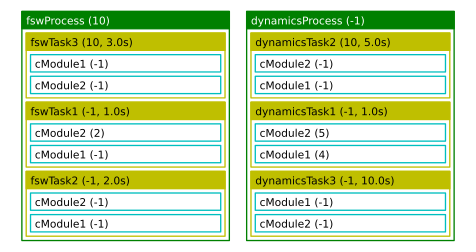
The method ShowExecutionFigure(True) will perform the same Xmera process, task and module order extraction process,
but display is as a figure. The method returns a copy of the figure so it can be used in auto-documentation features
or saved off for future use. For example, adding this command to this sample script will yields the following figure.