Creating Stand-Alone Messages#
In the previous example, messages embedded within modules were connected to form data pathways. However, certain use cases require stand-alone messages that are created independently of any specific module. These are often used by flight algorithm modules that rely on messages providing spacecraft configuration details, such as mass and inertia, or actuator setups like thrusters or reaction wheels.
For example, when writing a unit test for a module, the test should ideally only execute the module being tested. All necessary input messages should be created as independent stand-alone messages. This avoids dependencies on outputs from other modules and makes the module test fully self-contained.
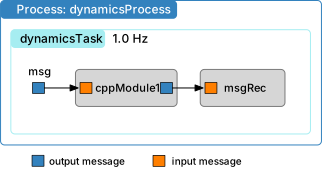
This tutorial demonstrates how to create and use a stand-alone message, and how to connect it to a module input. It also shows how the simulation can be paused, message values changed, and then resumed.
Creating a Stand-Alone Message#
To create a stand-alone message, you must first define its payload—the data container for the message content. Suppose you are working with a message type someMsg. The payload container is created using:
msgData = messaging.someMsgPayload()
This creates an instance of the Python class that represents the message structure. Initially, all fields are set to zero. You can modify any of these fields as needed. For example:
msgData.variable = ...
Next, you create the message object and write the payload to it:
msg = messaging.someMsg()
msg.write(msgData)
These steps can be combined into one line for convenience:
msg = messaging.someMsg().write(msgData)
In the example script below, a stand-alone message is created and connected to a module input.
 1    Illustration of creating stand-alone messages
 2    """
 3
 4    #  Create a sim module as an empty container
 5    scSim = SimulationBaseClass.SimBaseClass()
 6
 7    #  create the simulation process
 8    dynProcess = scSim.CreateNewProcess("dynamicsProcess")
 9
10    # create the dynamics task and specify the integration update time
11    dynProcess.addTask(scSim.CreateNewTask("dynamicsTask", macros.sec2nano(1.)))
12
13    # create modules
14    mod1 = cppModuleTemplate.CppModuleTemplate()
15    mod1.modelTag = "module1"
16    scSim.AddModelToTask("dynamicsTask", mod1)
17
18    # create stand-alone input message
19    msgData = messaging.ModuleTemplateMsgPayload()
20    msgData.dataVector = [1., 2., 3.]
21    msg = messaging.ModuleTemplateMsg().write(msgData)
22
23    # connect to stand-alone msg
24    mod1.dataInMsg.subscribeTo(msg)
25
26    # setup message recording
27    msgRec = mod1.dataOutMsg.recorder()
28    scSim.AddModelToTask("dynamicsTask", msgRec)
29
30    #  initialize Simulation:
31    scSim.InitializeSimulation()
32
33    #   configure a simulation stop time and execute the simulation run
34    scSim.ConfigureStopTime(macros.sec2nano(10.0))
35    scSim.ExecuteSimulation()
36
37    # change input message and continue simulation
38    msgData.dataVector = [-1., -2., -3.]
39    msg.write(msgData)
40    scSim.ConfigureStopTime(macros.sec2nano(20.0))
41    scSim.ExecuteSimulation()
42
43    # plot recorded data
44    plt.close("all")
45    figureList = {}
46    plt.figure(1)
47    for idx in range(3):
48        plt.plot(msgRec.times() * macros.NANO2SEC, msgRec.dataVector[:, idx],
49                 color=unitTestSupport.getLineColor(idx, 3),
50                 label='$r_{BN,' + str(idx) + '}$')
51    plt.legend(loc='lower right')
52    plt.xlabel('Time [sec]')
53    plt.ylabel('Module Data [units]')
54    figureList["bsk-5"] = plt.figure(1)
55    if "pytest" not in sys.modules:
56        plt.show()
57    plt.close("all")
58
59    return figureList
60
61
62if __name__ == "__main__":
63    run()
The simulation is initially run for 10 seconds. Afterward, the contents of the stand-alone message are updated. There is no need to recreate the message object—it remains valid and connected to any module inputs. Only the data payload needs to be updated.
The simulation’s stop time is then extended by another 10 seconds (for a total of 20 seconds), and execution resumes. The updated results are reflected in the module’s output message, which is plotted below.
