Connecting Messages#
So far we have learned how to add Xmera modules to a task, setting priorities to execute those modules, and specifying update rates; next we will look at how to connect module messages to one another. Messages are anything that a module outputs after it is executed, such as spacecraft state information, battery power, etc. Again we use cppModuleTemplate as the stand-in modules to illustrate setting message connections. Note that the input and output message connections of these modules are of the same type. The following simulation script again uses a single process and task. The modules are created and their input and output messages are connected as illustrated below.
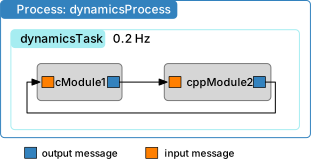
The source code is shown below. As we are going to be using the Xmera messaging system now, it is important to
import the messaging package from Xmera.architecture. Without this the python code will not know how to
subscribe to any message type, or how to create a stand-alone message.
 1
 2    #  create the simulation process
 3    dynProcess = scSim.CreateNewProcess("dynamicsProcess")
 4
 5    # create the dynamics task and specify the integration update time
 6    dynProcess.addTask(scSim.CreateNewTask("dynamicsTask", macros.sec2nano(5.)))
 7
 8    # create modules
 9    mod1 = cppModuleTemplate.CppModuleTemplate()
10    mod1.modelTag = "module1"
11
12    mod2 = cppModuleTemplate.CppModuleTemplate()
13    mod2.modelTag = "module2"
14
15    # add modules to task list
16    scSim.AddModelToTask("dynamicsTask", mod1)
17    scSim.AddModelToTask("dynamicsTask", mod2)
18
19    # connect messages
20    mod2.dataInMsg.subscribeTo(mod1.dataOutMsg)
21    mod1.dataInMsg.subscribeTo(mod2.dataOutMsg)
22
23    #  initialize Simulation:
24    scSim.InitializeSimulation()
25
26    #   configure a simulation stop time and execute the simulation run
27    scSim.ConfigureStopTime(macros.sec2nano(5.0))
28    scSim.ExecuteSimulation()
29
30    return
31
32
33if __name__ == "__main__":
34    run()
The method .subscribeTo() connects an output message (variable name ending with OutMsg) to an input message
(variable name ending with InMsg), as shown in lines 36-37 above.
Thus, a module output message anotherModule.xxxOutMsg is connected to a module input message
someModule.xxxInMsg using the .subscribeTo() method as follows:
someModule.xxxInMsg.subscribeTo(anotherModule.xxxOutMsg)
The input and output message names are arbitrary.
Warning
You can only subscribe an input message to an output message that already exists! Don’t try to subscribe to the message before it has been created. In this simulation the subscriptions are all occurring after the modules are created.
If you execute this python code you should see the following terminal output:
source/code-samples % python3 xmera-3.py
BSK_INFORMATION: Variable dummy set to 0.000000 in reset.
BSK_INFORMATION: Variable dummy set to 0.000000 in reset.
BSK_INFORMATION: C++ Module ID 1 ran Update at 0.000000s
BSK_INFORMATION: C++ Module ID 2 ran Update at 0.000000s
BSK_INFORMATION: C++ Module ID 1 ran Update at 5.000000s
BSK_INFORMATION: C++ Module ID 2 ran Update at 5.000000s
Note that here the two modules are added without setting a priority. Thus, they are executed in the order that they were added to the Xmera task.